Walk through an incident
Follow one incident from its first staffing need to the final review. See the actual DART screens and the records each step creates.
Meet the team
The Harbor flood response needs one logistics responder at Harbor field office. Alex Morgan coordinates the work. Sam Rivera reviews the deployment order. Jordan Lee accepts the assignment and works at the field office.
This is a fictional training case in a separate development workspace. The screenshots come from the working application. The names, incident, and equipment are sample records.
The case uses the sample Exercise deployment rules and UTC dates. It follows one short assignment that ends early. An agency deployment uses its own approved rules and operating environment.
Jordan already has an active logistics credential and approved availability for these dates. Those records were prepared through the readiness workflow before the incident started. Being ready does not mean Jordan has already been selected.
Follow the names and record links as you read. The same order creates Jordan’s deployment. The same field radio is issued and returned. Open any screenshot to read it at full size.
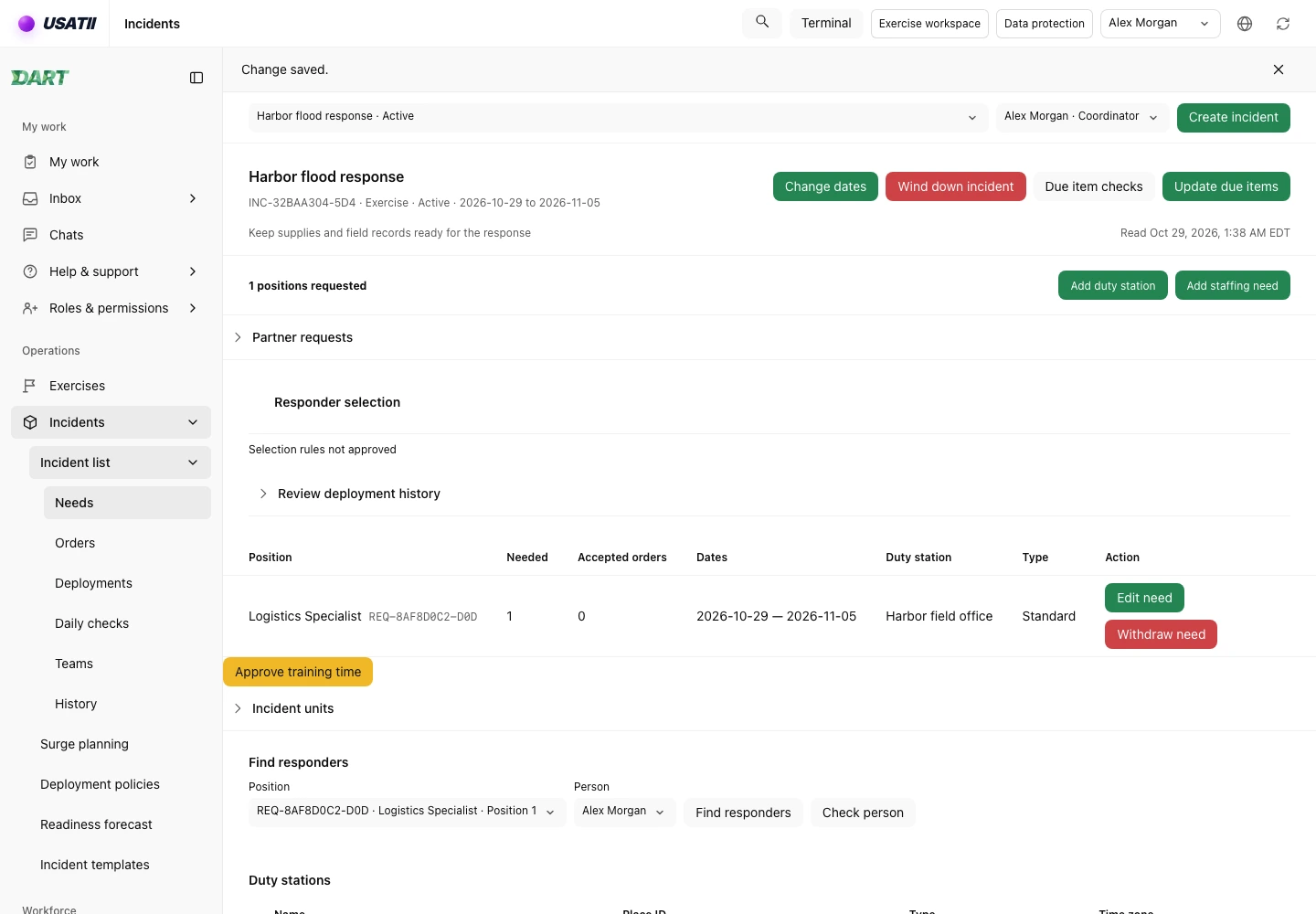
1. Set up the incident and its staffing need
Alex opens Incidents and chooses Create incident. Alex names the incident Harbor flood response, states the work, and sets its dates and time zone. The incident begins in Planned.
Alex starts the incident, then adds Harbor field office as a physical duty station. Its place ID is HARBOR-OFFICE. The station gives the assignment a real reporting location.
Alex adds one logistics staffing need. The need names the position, station, and dates. It creates a slot to fill; it does not assign Jordan or issue an order.
The incident now has an Active state, one field office, and one open position. The incident setup and staffing need remain separate records.
2. Check Jordan for the requested work
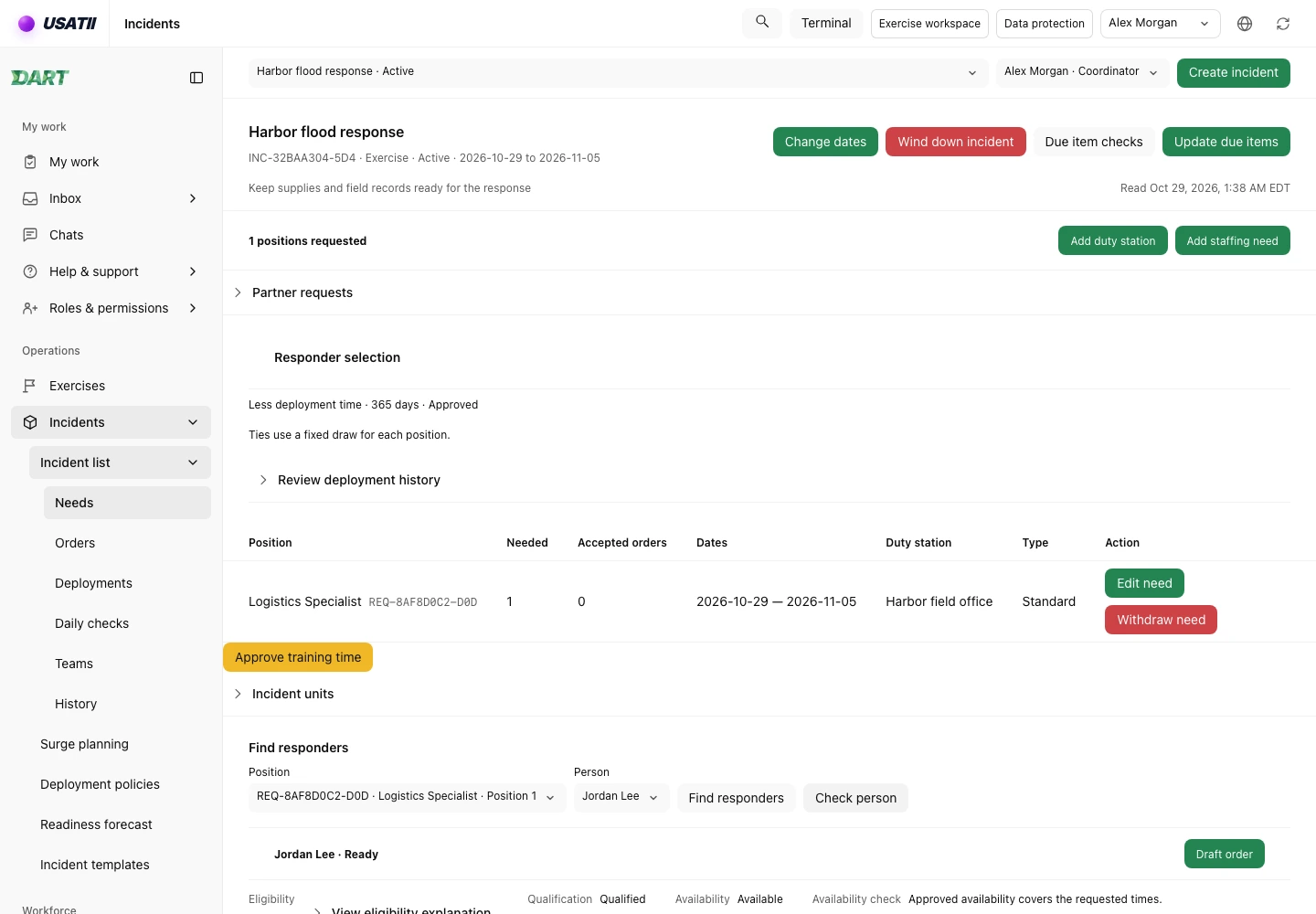
In Needs, Alex chooses Jordan Lee and presses Check person. DART checks Jordan against this need and its dates. The result is Ready.
This check considers the required qualification and availability. It also looks for conflicting commitments and applicable deployment limits. A different need or date range can produce a different result.
Sam has saved the sample incident rule: Less deployment time, with a 365-day lookback. Readiness and ranking answer different questions. A ready person can still have unconfirmed deployment history.
Alex drafts the order and explains the choice. This case records that Jordan’s history is unconfirmed. It does not treat missing history as zero or claim Jordan has the least deployment time.
3. Have a different person review the order
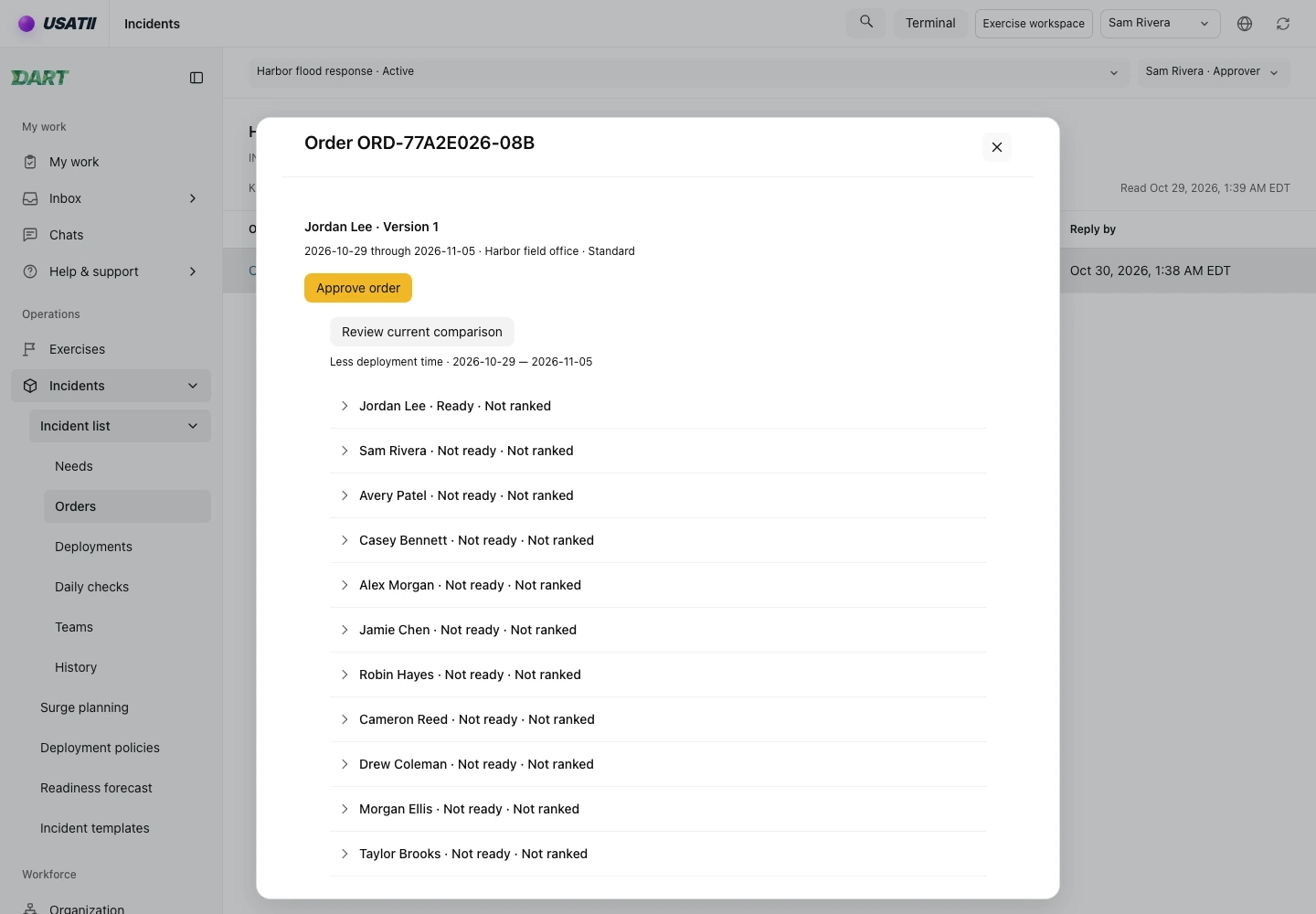
Alex sends the draft for review. Sam opens the same order and runs its current comparison. Sam can inspect the candidate result and the saved selection reason before approving.
The approval belongs to the comparison Sam reviewed. Changed rules or evidence can require a new check. The screen does not make Alex’s earlier choice sufficient on its own.
Sam approves the order. Alex then sends it to Jordan. Approval and sending are separate steps; neither one records Jordan’s agreement.
4. Let Jordan answer the offer
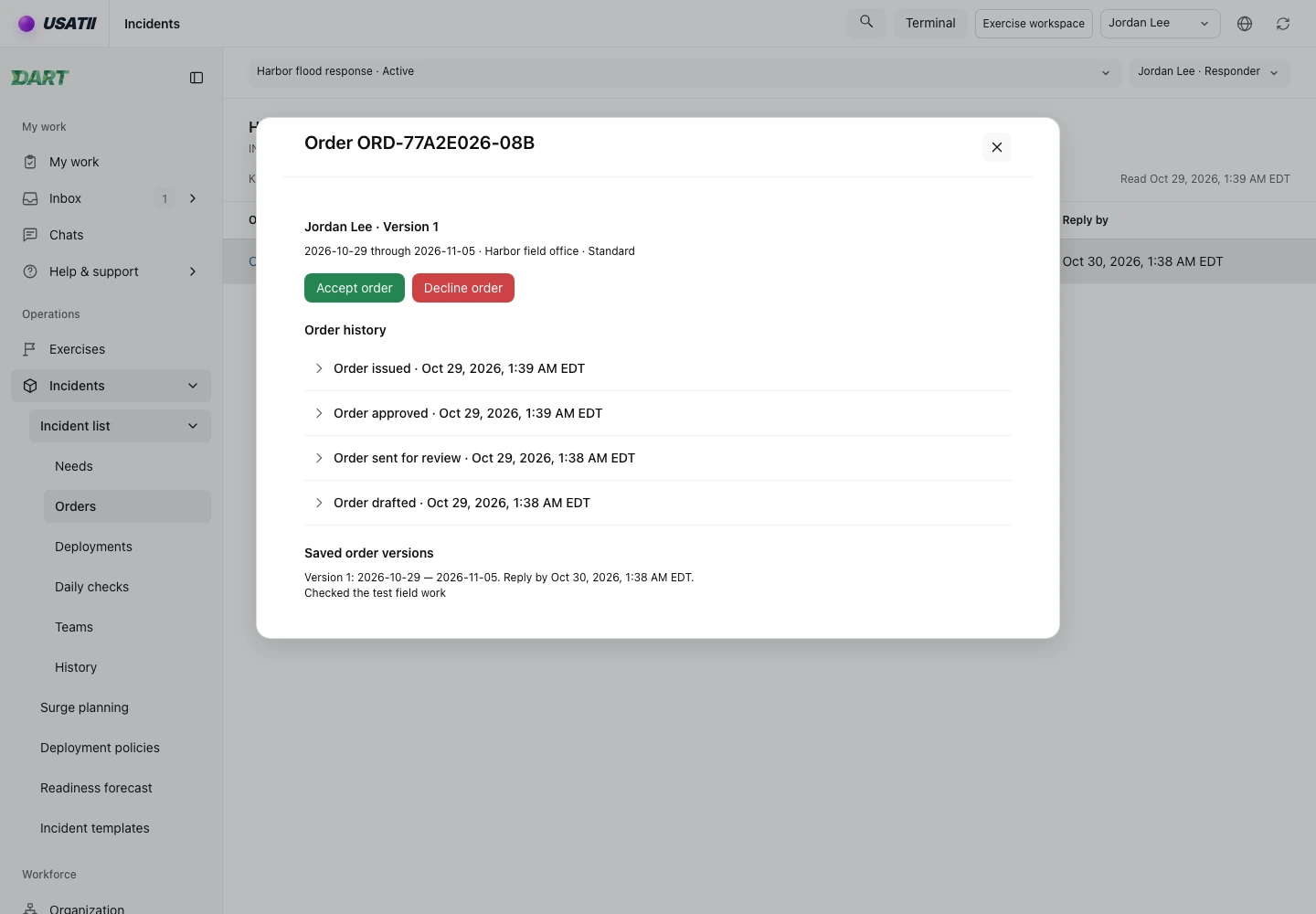
Jordan opens the issued order. It names the incident, reporting station, and assignment dates. Jordan can accept or decline before the reply deadline.
Jordan chooses Accept order. DART retains the accepted order revision and creates the deployment linked to it. The named responder answers the offer; Alex’s approval cannot stand in for that reply.
The order remains the agreement about the assignment. The deployment will record what happens during travel and field work.
5. Record travel and actual arrival
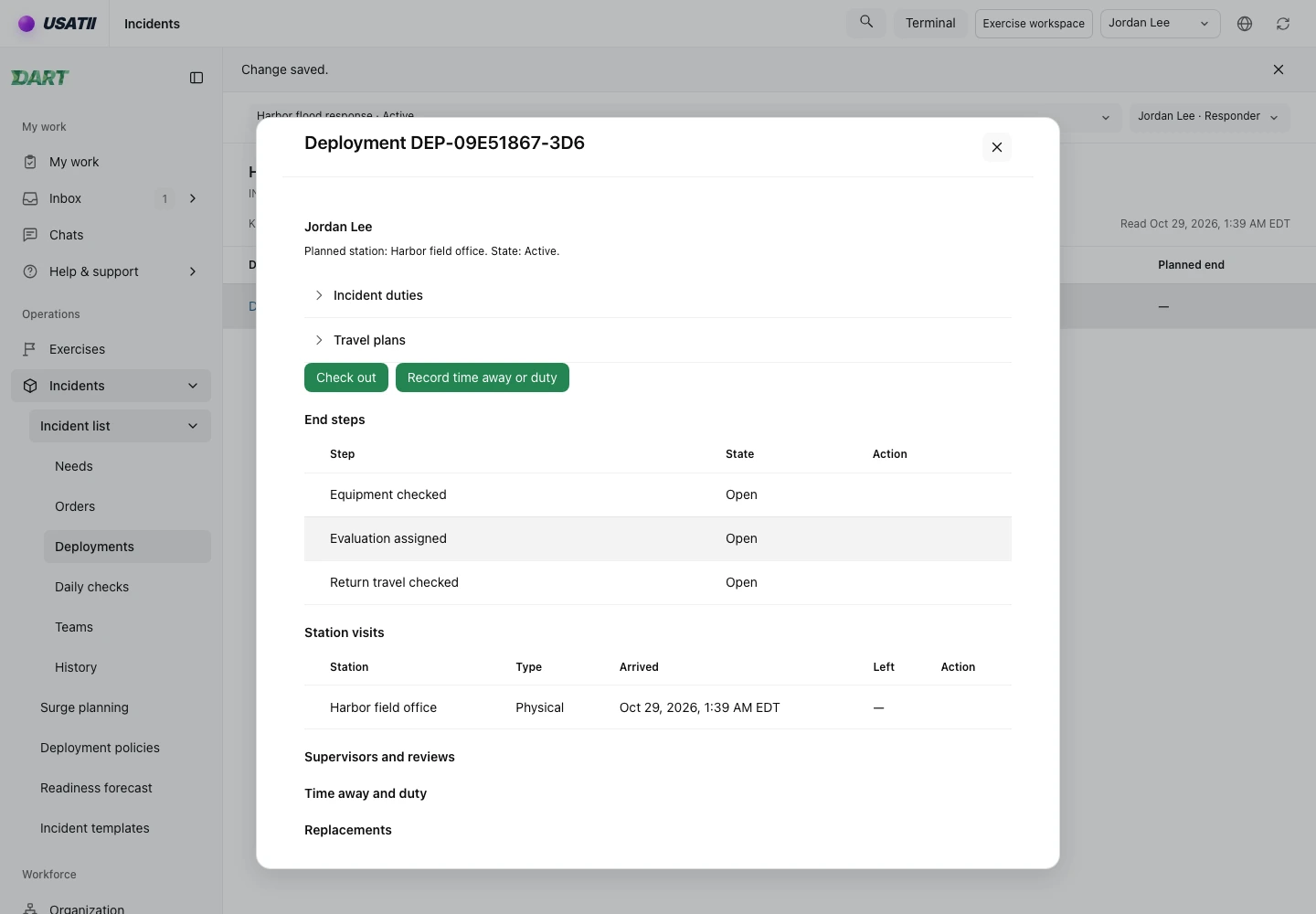
Jordan opens the deployment and chooses Start travel. Later, Jordan chooses Check in at Harbor field office.
Check-in opens an actual station visit. It records arrival rather than treating the planned reporting location as proof that Jordan is there.
The deployment is now Active at the field office. The accepted dates remain available beside the actual work records. A later move would need its own visit records.
6. Hand over the field radio
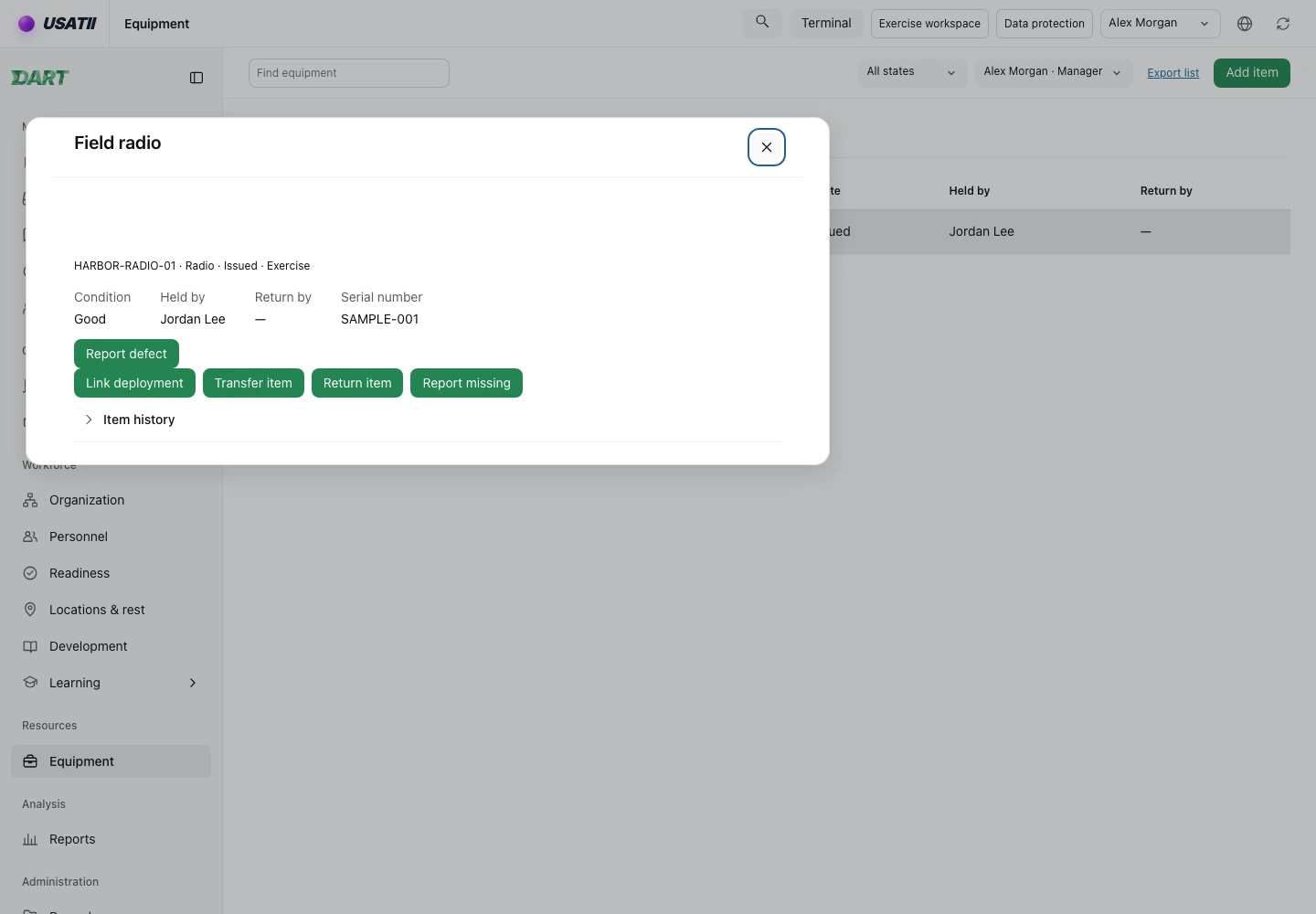
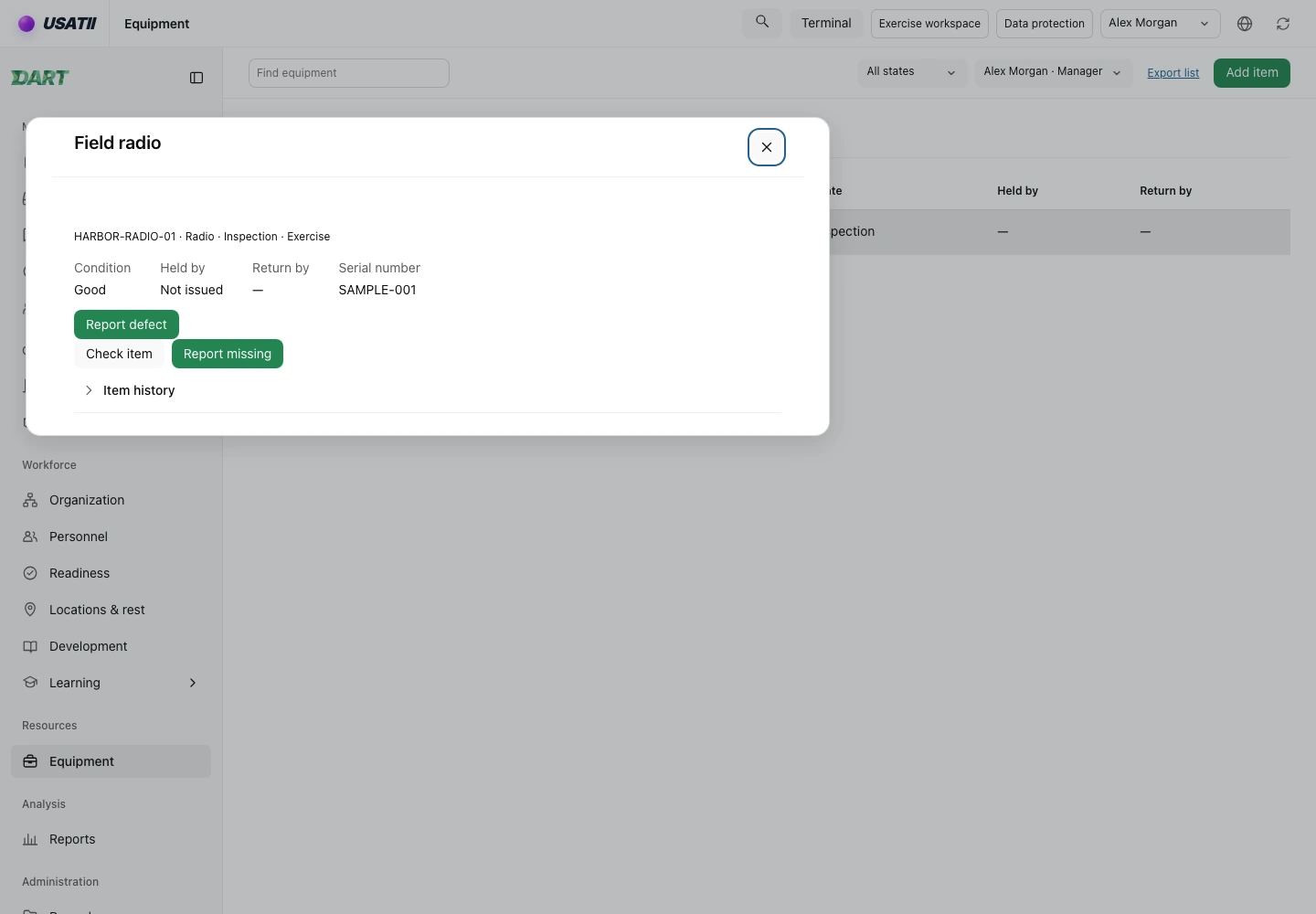
Alex opens Equipment and adds HARBOR-RADIO-01, a Field radio in Good condition. The sample item is marked for Exercise use, matching this incident.
Alex issues it to Jordan and links it to Jordan’s Harbor deployment. DART checks the holder, item state, and assignment links. It saves the handover in the item’s history.
The radio’s custody record now names Jordan. Its deployment link lets the end-of-assignment check find this exact item. Issuing another item would create another custody obligation.
7. Answer the daily check
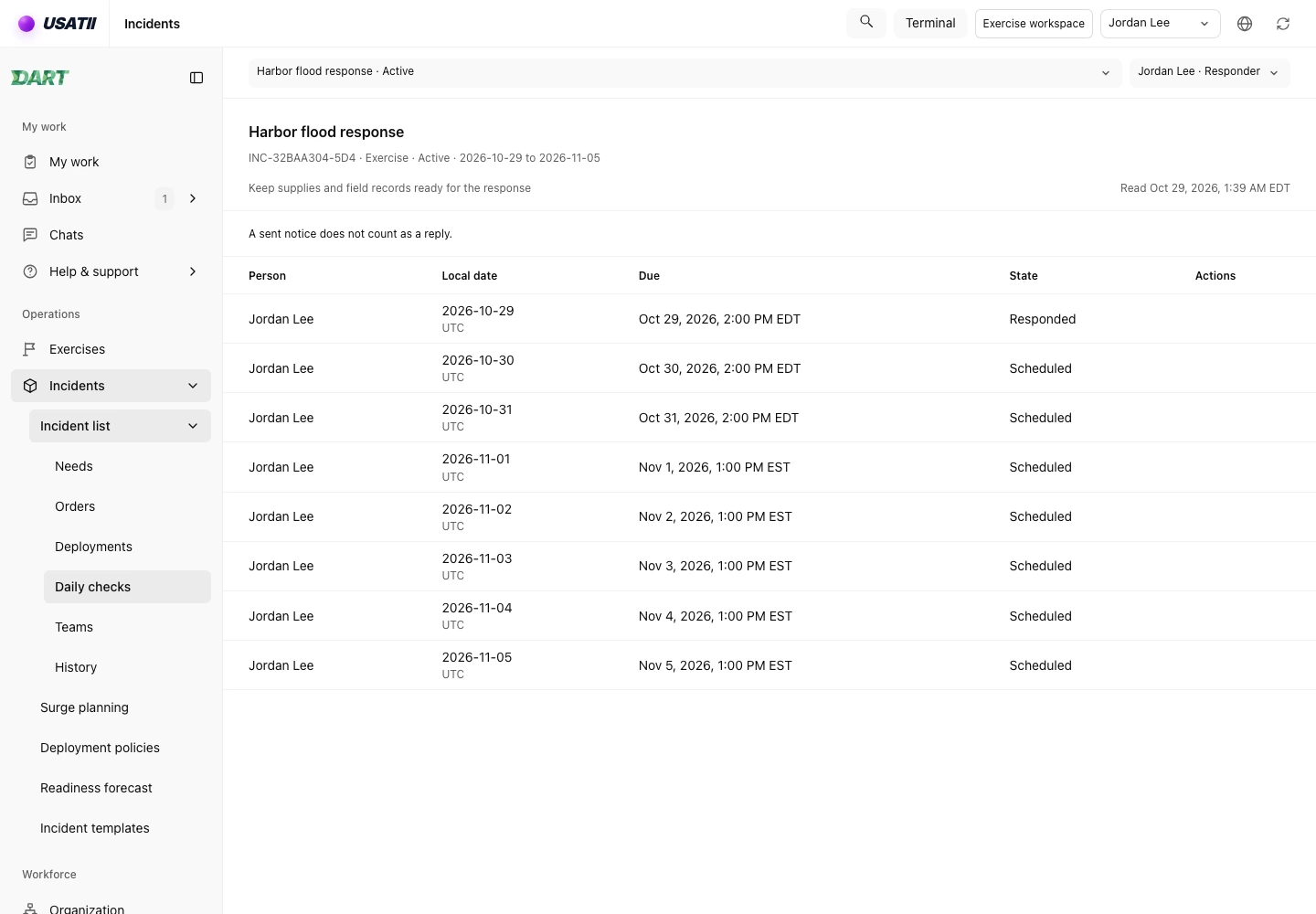
Jordan opens Daily checks for the incident. Each check has its own local date, opening time, and due time. Arrival and a daily check are different records.
Jordan replies to the opened check. Its state becomes Responded. Future checks remain scheduled until their windows open or the deployment ends.
If Jordan cannot make a normal check-in, Report problem starts an exception request. That request needs a separate supervisor decision. This worked case follows the normal reply path.
8. Return and inspect the same radio
When Jordan’s field work ends, Alex returns HARBOR-RADIO-01. The return clears the holder and assignment links and puts the item in Inspection.
Returning the radio does not make it ready for the next person. Alex checks it, records Good condition, and moves it to Available.
The original issue and return stay in the history. Jordan’s deployment no longer has this radio outstanding. An Issued or Missing item still linked to the deployment would block final completion.
9. Prepare the deployment end
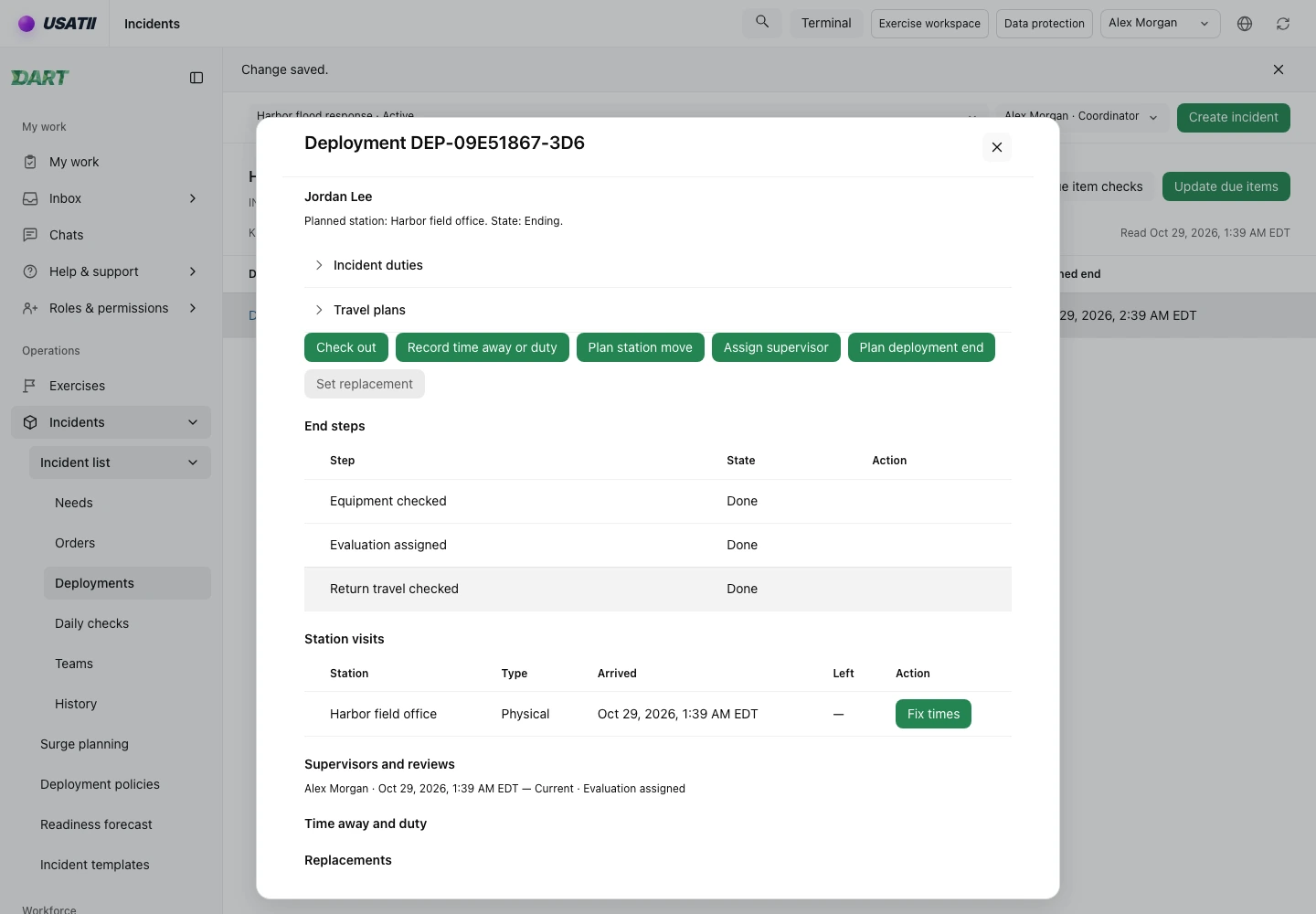
Alex assigns a supervisor and chooses Plan deployment end. The sample policy requires Equipment checked, Evaluation assigned, and Return travel checked.
Alex records each end step as Done after checking the work. Assigning the supervisor creates the review obligation. The evaluation step confirms that a review is assigned; it does not mean the review has been written.
The plan puts the deployment in Ending. It does not check Jordan out of the station or record a return home. Those are separate actions.
10. Check out, record the return, and finish
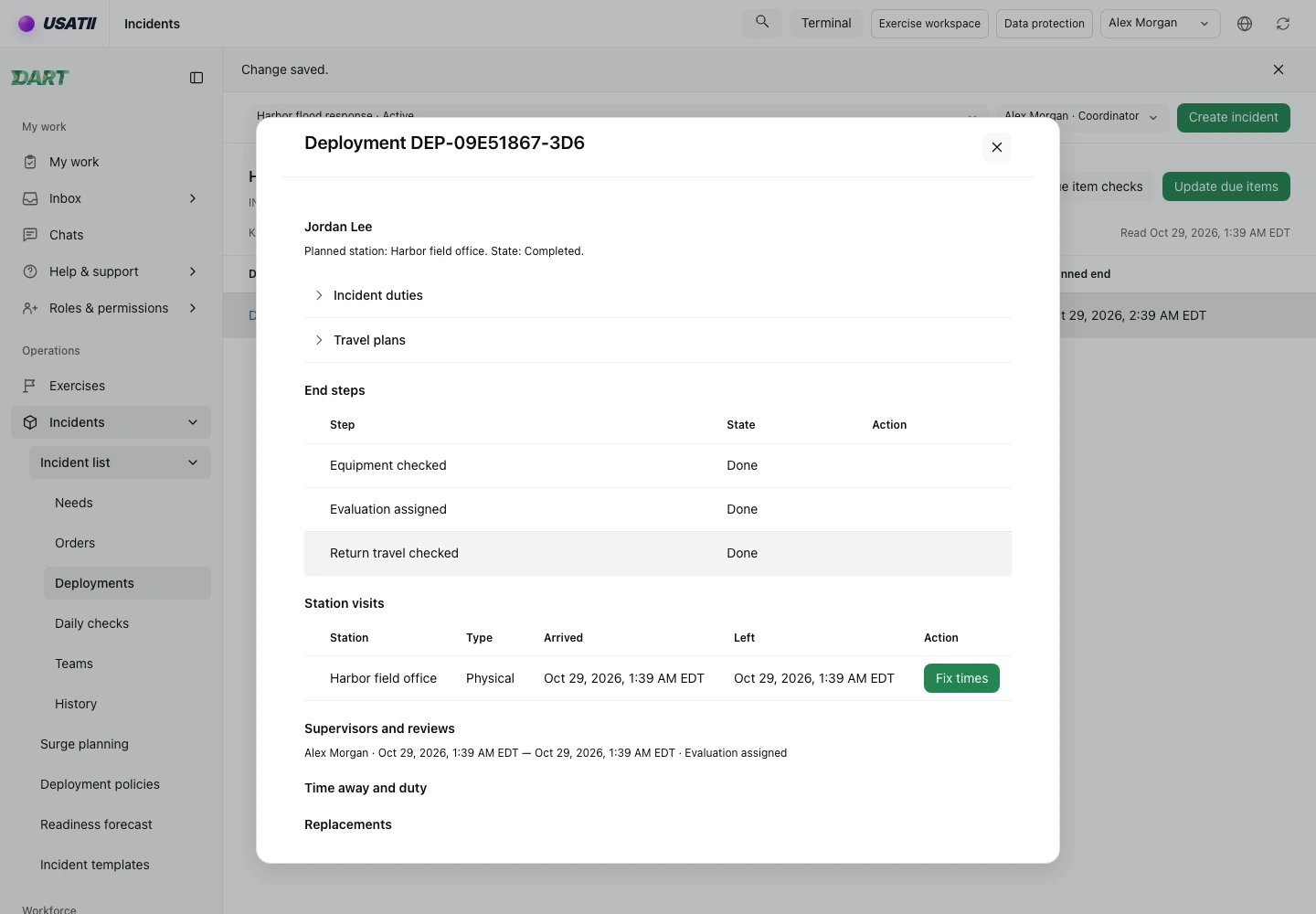
Jordan checks out of Harbor field office. This closes the actual visit and changes the deployment to Returning. The coordinator records Jordan’s return after checkout.
Alex chooses Finish deployment. DART checks the open end steps, opened daily checks, equipment still linked to the assignment, and pending order changes. Policy can add required return or evaluation checks.
The deployment becomes Completed. Scheduled future daily checks are cancelled. The accepted order revision and actual visit history remain saved.
This short example returns early. It does not rewrite the accepted order dates to make the planned assignment appear to have lasted only a few minutes.
11. Close the incident
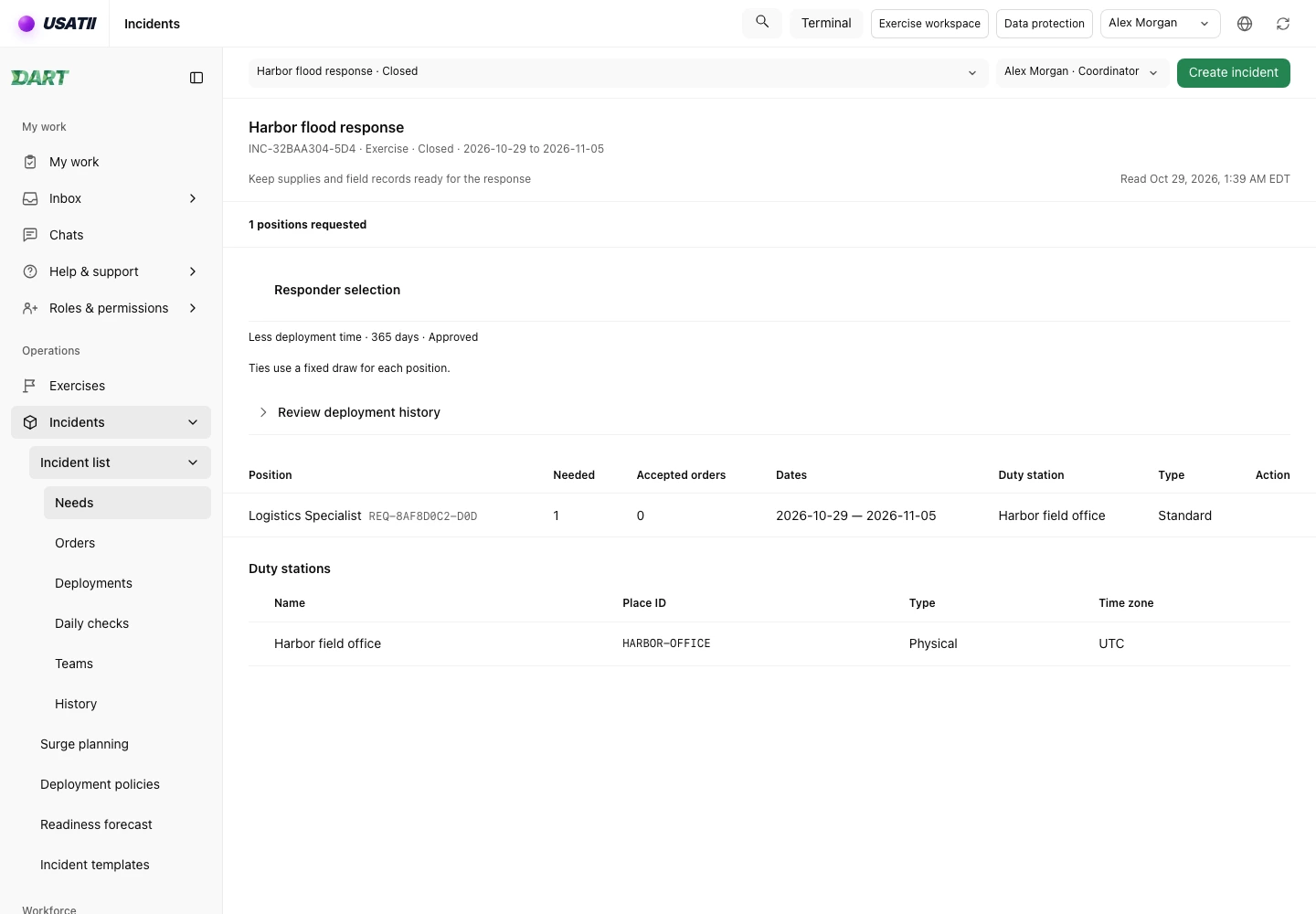
Alex winds down Harbor flood response, then closes it. Incident closure is separate from completing Jordan’s deployment.
DART checks for remaining open work before allowing closure. A response with other open deployments or orders would need those records settled too.
The incident is now Closed. Closing it preserves the records used to explain who was selected, who approved, what Jordan accepted, and when the field visit happened.
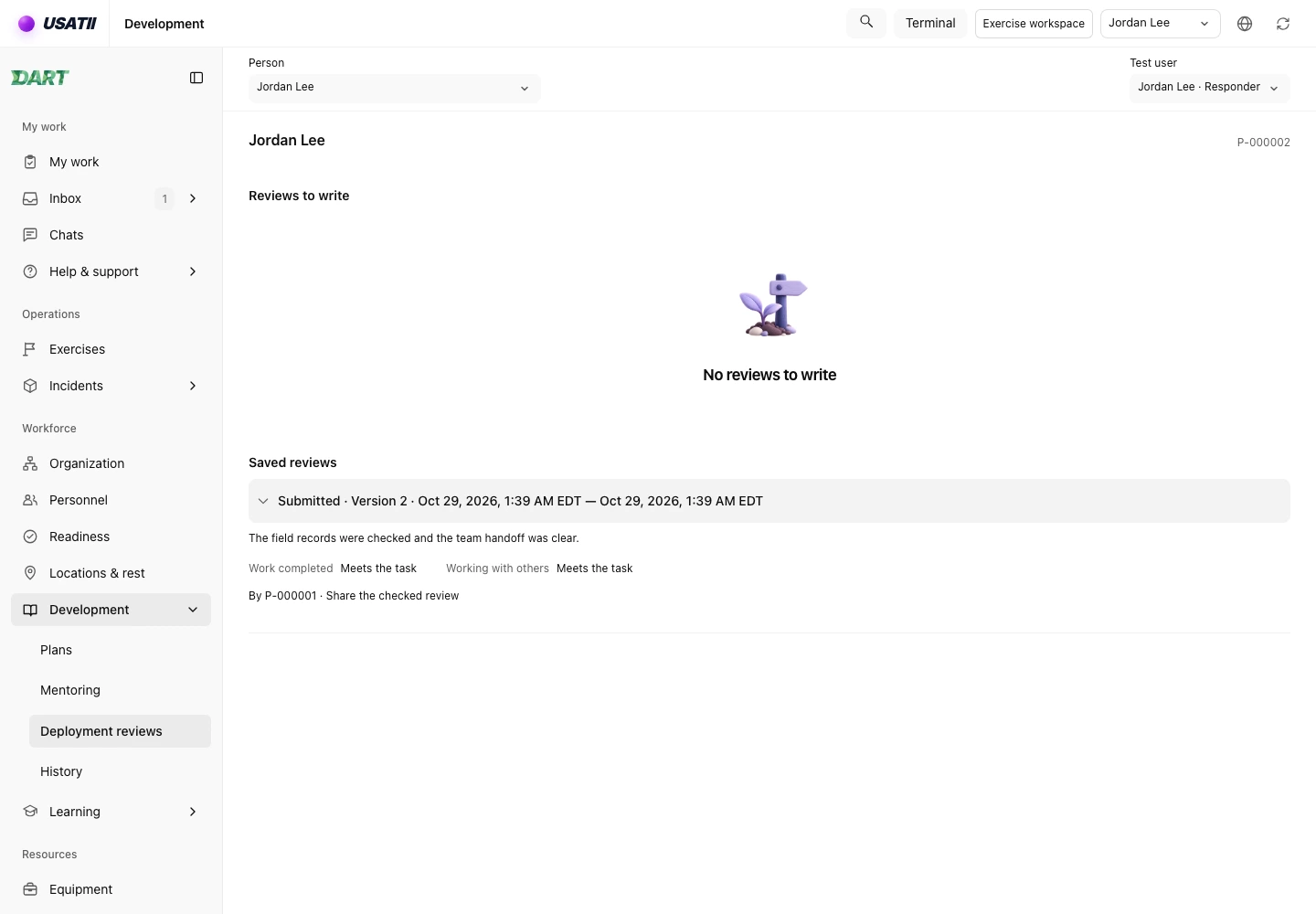
12. Keep the review with the completed work
Alex opens Jordan’s Deployment reviews and writes the assigned review. Alex records the work observed and submits it.
Jordan can read the submitted review. It stays linked to this deployment rather than becoming a new credential or replacing the staffing evidence.
The sample policy allows the review to be submitted after deployment completion. A policy requiring evaluation completion would make that a gate before Finish deployment.
The case now has a complete chain: the staffing need, reviewed order, responder reply, actual visit, daily reply, radio history, end checks, and submitted review. Each record explains a different part of the response.